What Changed on the New Website
We rebuilt the whole site. Here is how to reach your classes and tools, how the menu is laid out, and, if you run a Marketing Launchpad, what changed there.
Everything You Pay For Is Behind One Menu
Classes, tools, replays, your profile and your billing all live under Members in the top navigation.
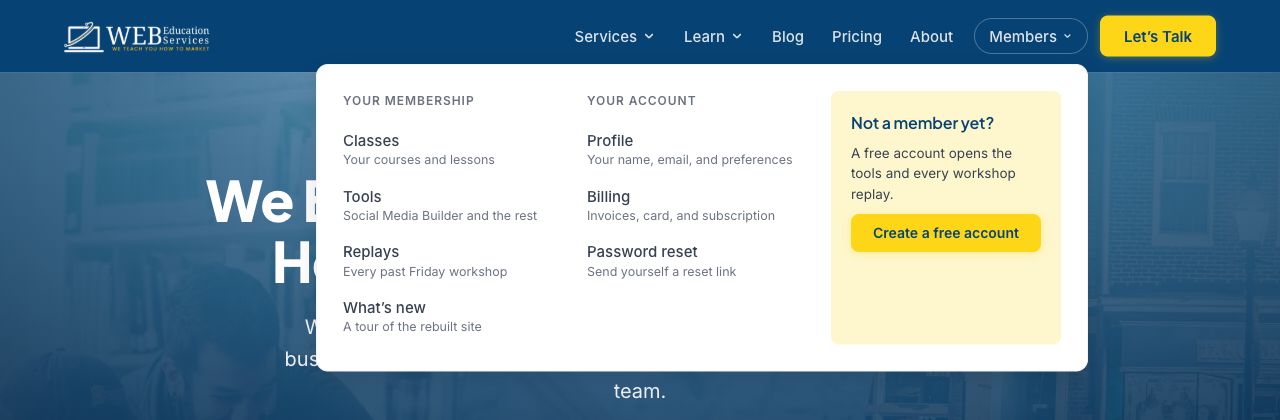
- Classes opens WES Learning, where your courses and lessons live.
- Tools opens the member hub. That is where the Social Media Builder and the rest of the AI tools run.
- Replays goes straight to the workshop recordings, so you can catch a Friday session you missed.
- Profile is your name, email and preferences.
- Billing opens your own billing portal. Update your card, read invoices, see your subscription.
- Password reset emails you a reset link if you are locked out.
If you are not a member yet
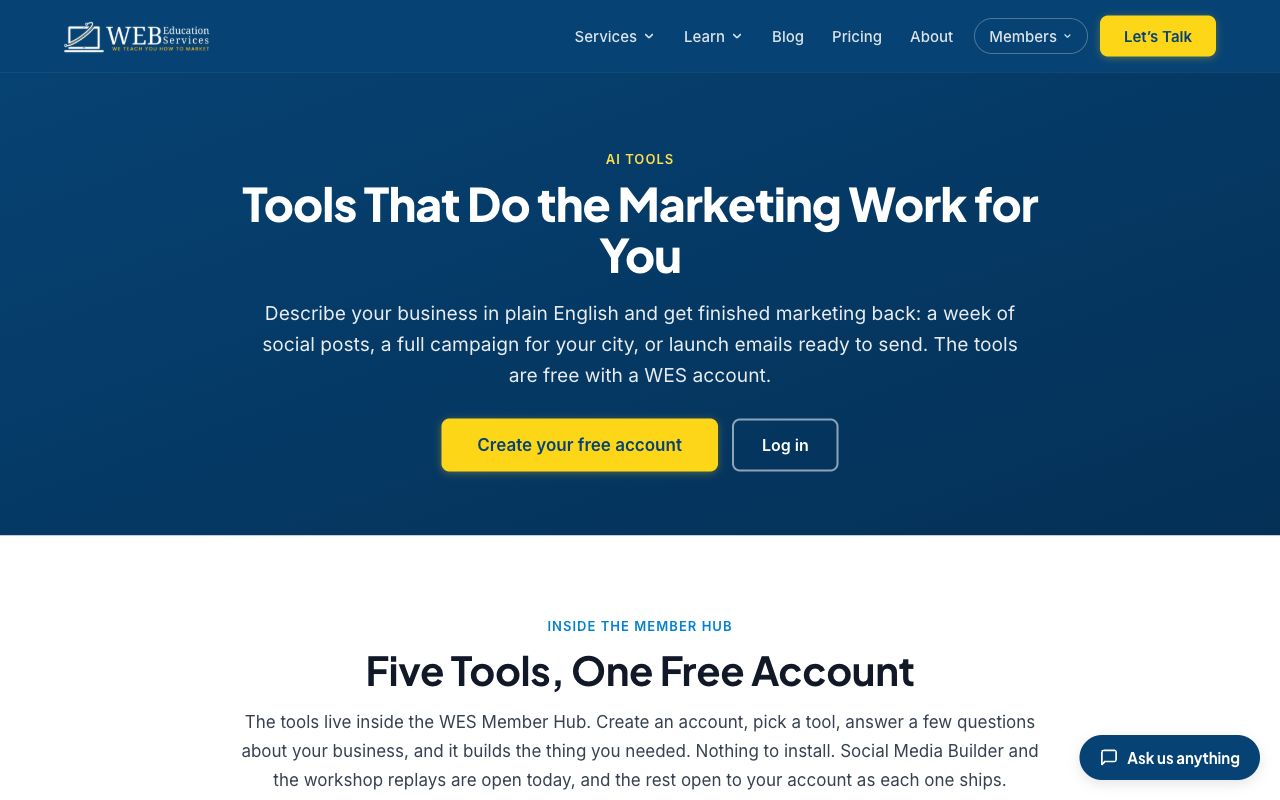
A free account opens the AI tools and every workshop replay, with no card required. The paid membership adds the full self-paced course library at $23 a month. Both live behind the same Members menu.
The Menu Is Organized Around What You Came to Do
Four ideas, in the order people usually need them.
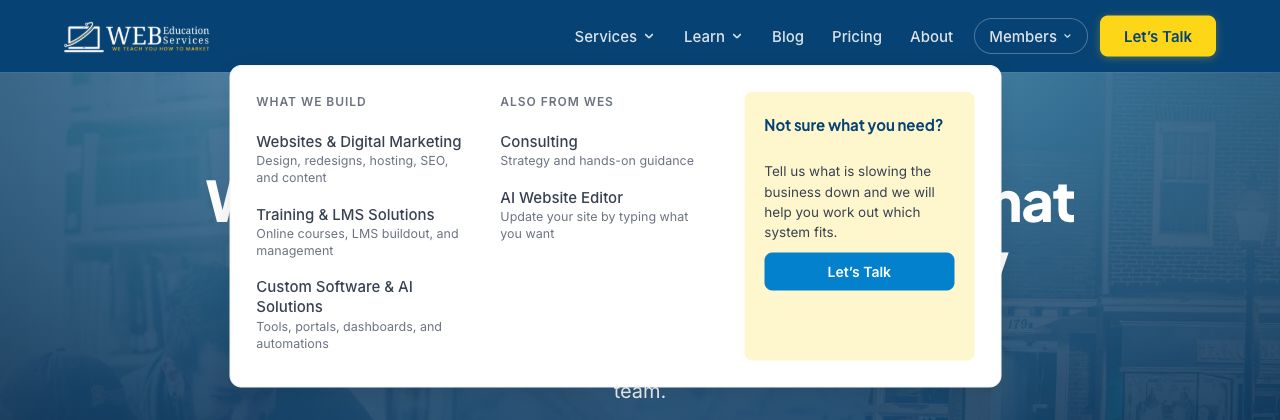
- Services is the work we do for you: websites and digital marketing, training and LMS work, and custom software. Consulting and the AI Website Editor sit under it too.
- Learn is the work you do yourself: the Marketing Launchpad, workshops, the free AI tools and the resource library.
- Blog is its own item now instead of being buried, because that is what people go looking for.
- Members is the login menu covered above.
Pricing and About sit alongside them, and Let's Talk is the one yellow button on the page, so there is never a question about how to reach a person.
A Few Other Things Worth Knowing
And in the background
- Ask WES, an assistant in the corner of every page, answers questions about what we do
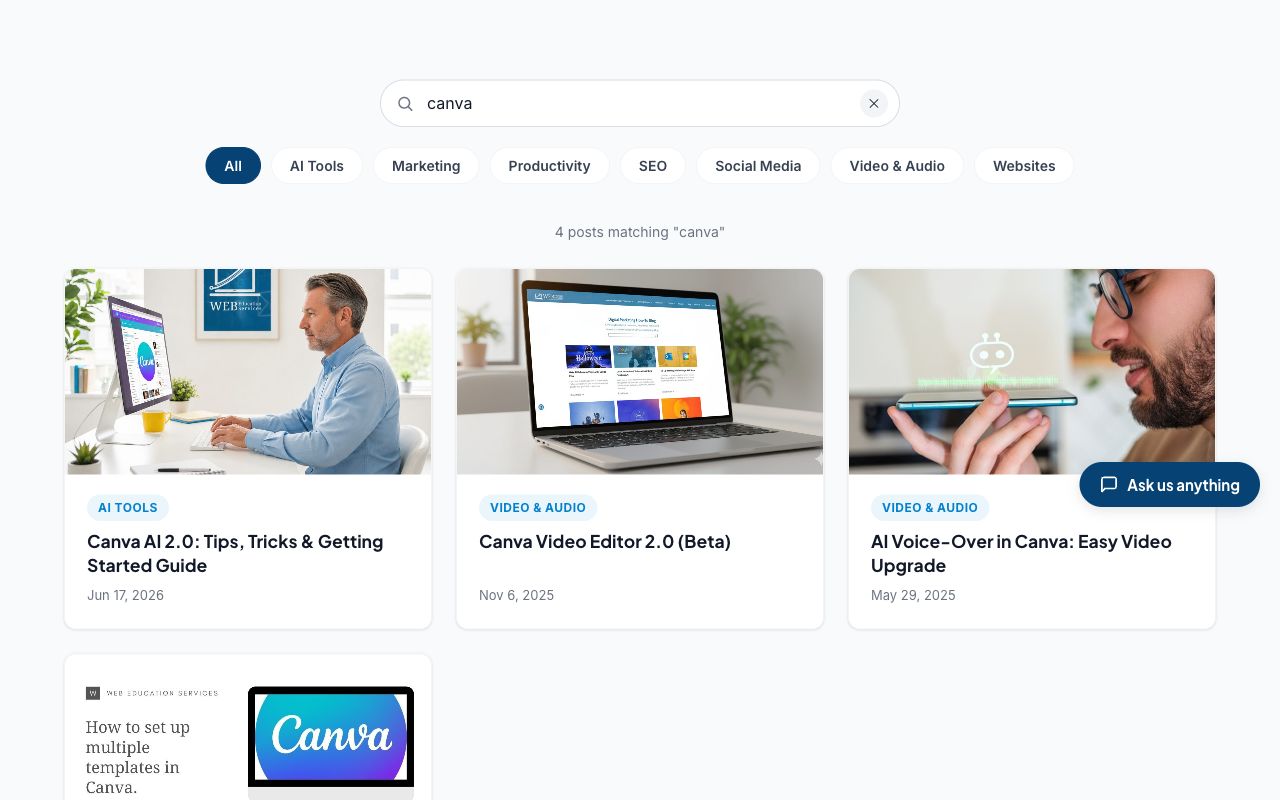
- Every article we have ever written came across, nothing was dropped
- Old links still work, so anything you bookmarked or shared still lands
- Pages load faster and stop jumping around while they load
The Marketing Launchpad Is Built Around Your Week Now
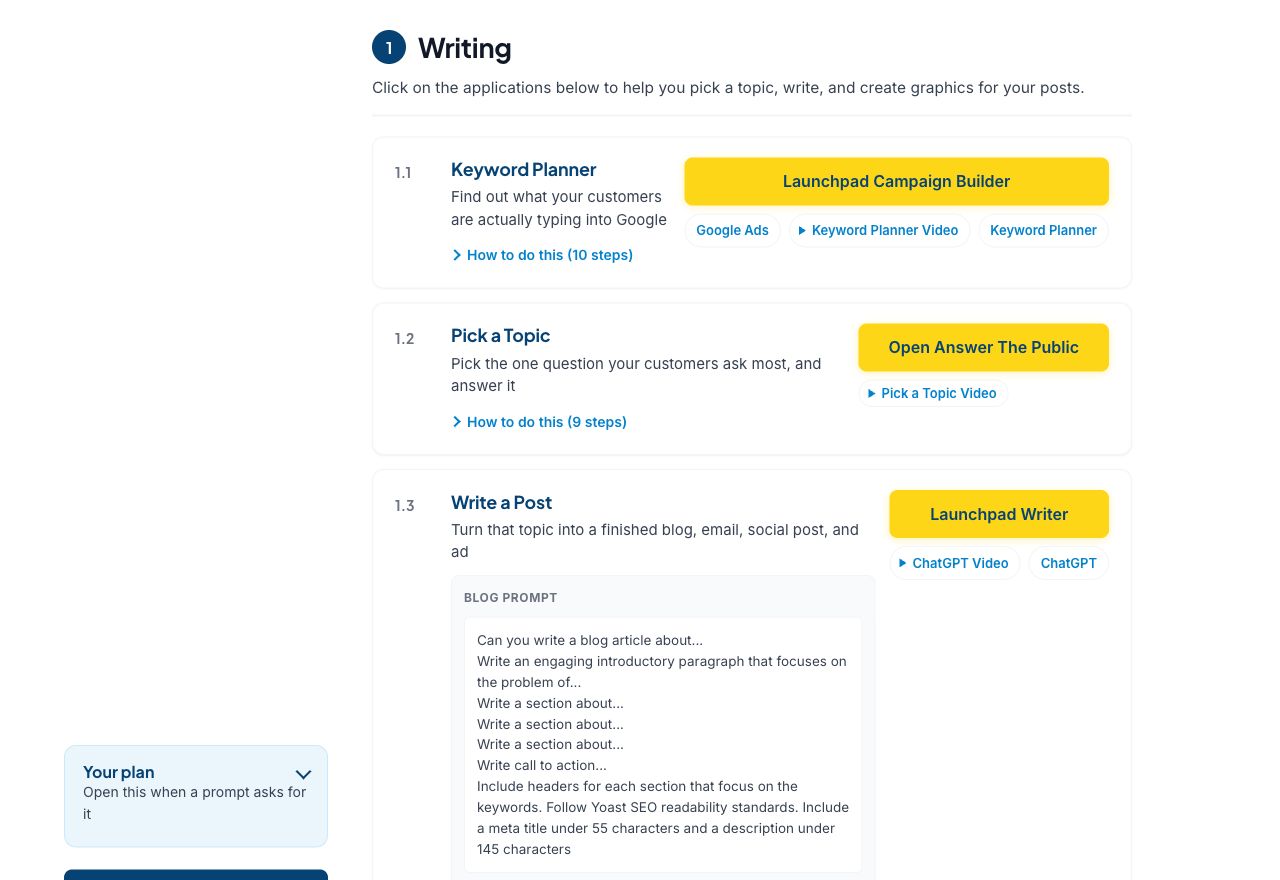
Same six steps, same tools, same links to your own accounts. What changed is that it finally reads like a checklist instead of a wall of tiles.
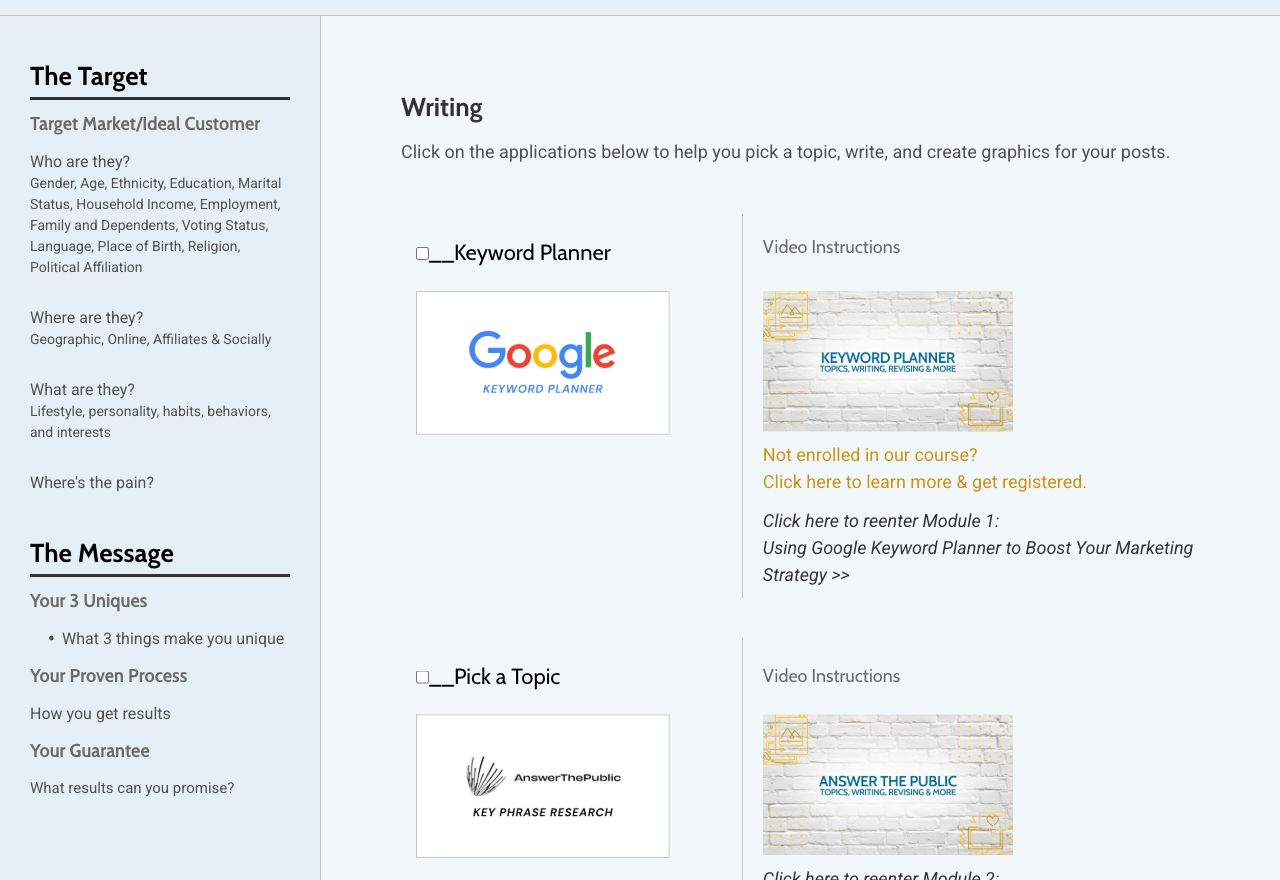
The old Launchpad spread a single step across three columns. Your target market and message sat in a panel on the left that you scrolled past every week. The tool was a logo tile in the middle. The instructions for using that tool were off in a third column. Nothing lined up, and two steps filled a whole screen.
Every step now says what it is for
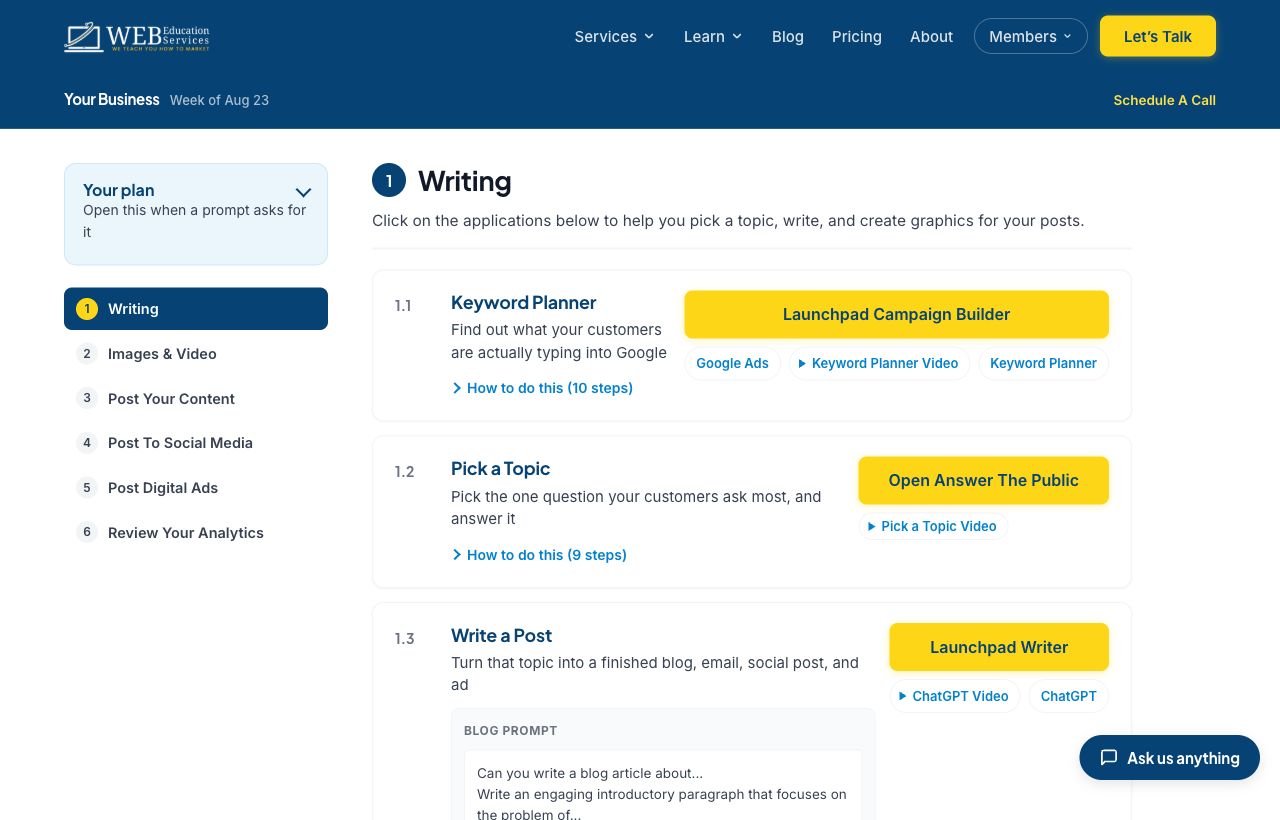
This is the change most people notice first. Before, a step was a name and a button, and you had to already know why you were clicking it. Now each one opens with a plain sentence: Keyword Planner, find out what your customers are actually typing into Google.
Underneath that is one button that names where it sends you, and the click-by-click instructions are folded away behind How to do this. Open them in week one, ignore them by week six.
A few smaller things you will notice
- Your plan is a panel now. Your target market and message sit in a panel on the left. Click it open when a prompt asks for them, leave it shut the rest of the time.
- Walkthrough videos play in place. No more losing your spot to a separate page.
- One tick per step, not per tile. Mark a step done and it clears itself at the start of the next week, so you are never looking at last week's checkmarks.
- The AI prompts are labeled. Blog, email, social and ads prompts each say which is which, with a Copy button that tells you when it copied.
Tell Us and We Will Fix It
If a link is wrong or something is harder than it should be, we would rather hear it than not.