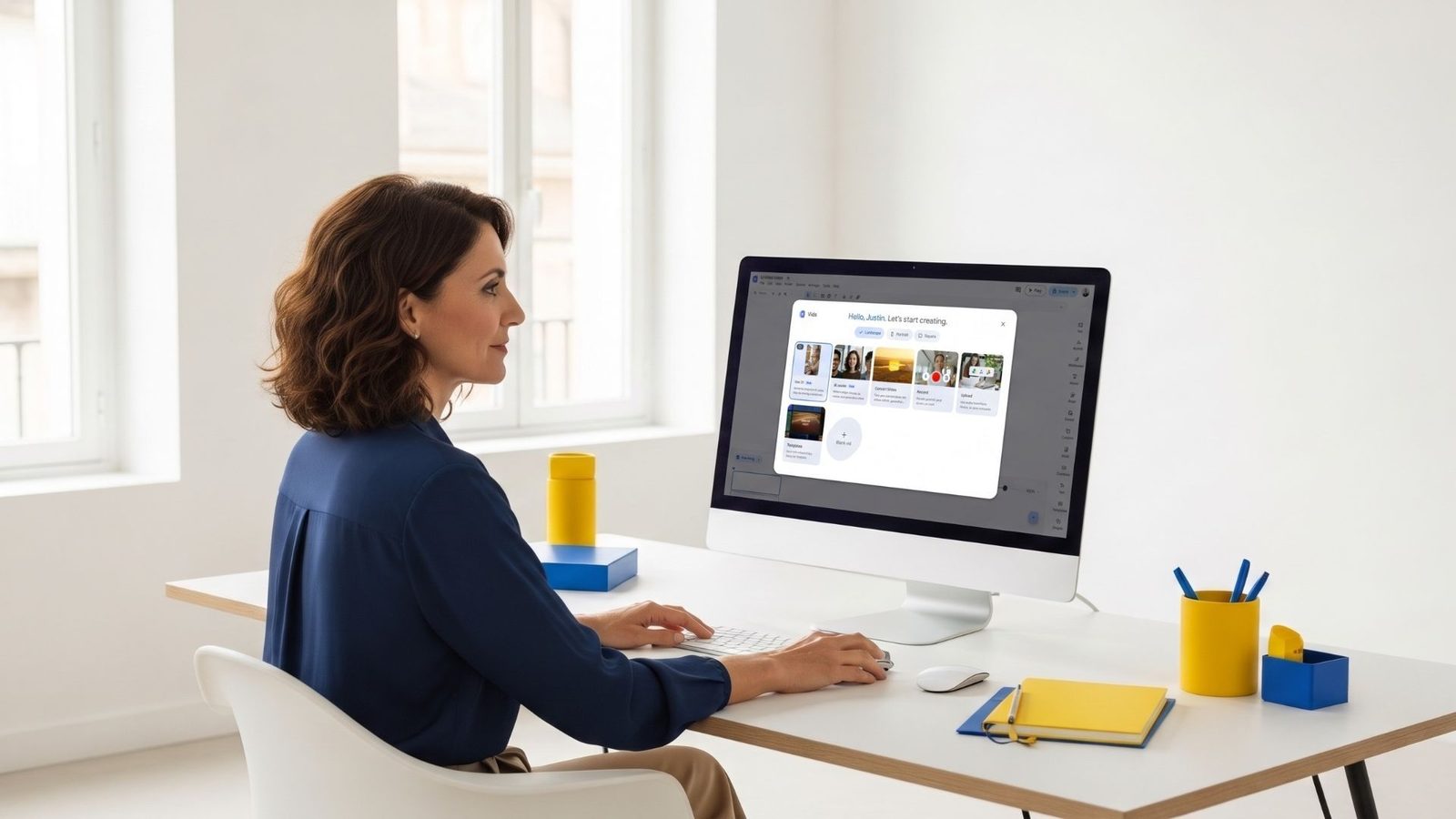
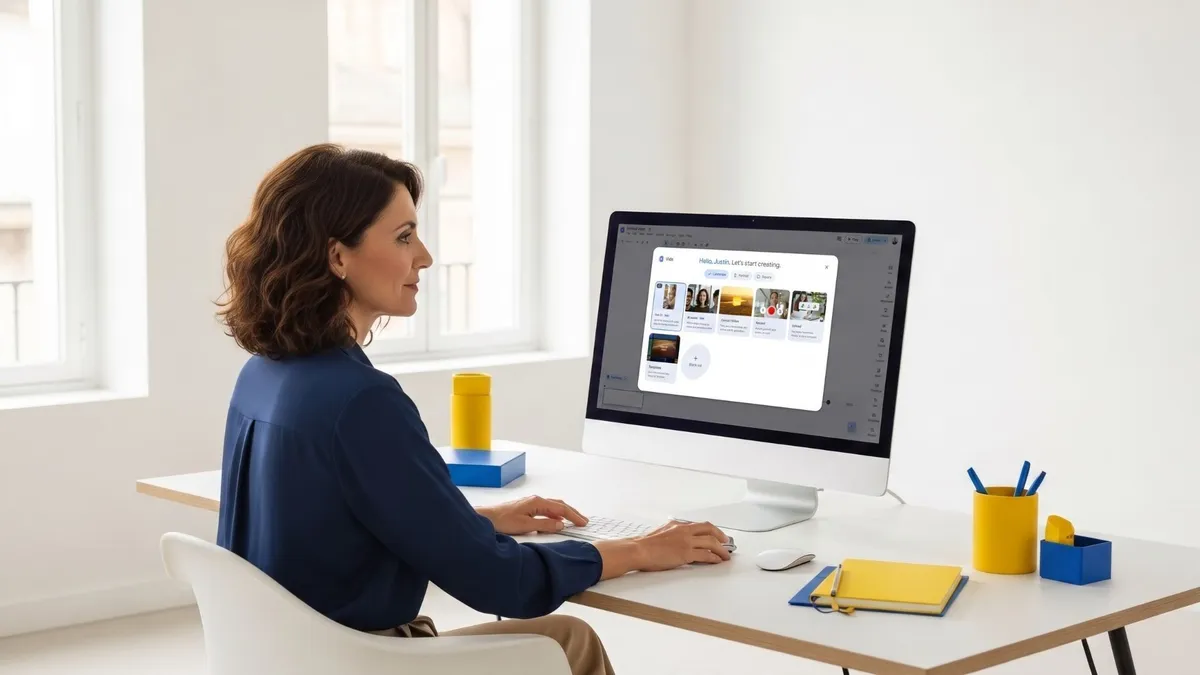
Google Vids: Quietly Revolutionizing Video Creation with AI in Your Workspace
A Practical Lesson for Small Business Owners, Marketers, and Teams
A lot of business owners know video matters. They know video can help explain what they do, make their website more engaging, and promote events or products. They know people are more likely to watch a short video than read a long explanation.
But knowing video matters is not the same thing as having an easy way to create it. That is where many businesses get stuck.
They think video means hiring a videographer. Or learning complicated editing software. Or writing a full script from scratch. That process feels heavy. So video gets pushed off. The business owner has ideas, but no workflow.
Google Vids is designed to reduce that friction. It gives everyday business users a way to create videos inside Google Workspace using AI, prompts, scripts, storyboards, scenes, stock media, voiceovers, and collaboration tools. Video creation does not have to start with a blank timeline anymore. It can start with a prompt, a document, a slide deck, or a rough idea.
Google Vids: Transforming Video Creation with Integrated AI
Google Vids is set to redefine how professionals approach video content, moving it from a specialized task to an everyday capability. It's a game-changer for anyone who needs to communicate effectively through video but lacks the time, budget, or expertise for traditional production. Let's explore the core features that make Vids an indispensable tool in your Google Workspace.
AI-Powered Generation: Your Creative Co-Pilot
The standout feature of Google Vids is its incredible AI-powered generation capability, often referred to as the "Help Me Create" function. This isn't just an editing suite; it's a creative partner. The days of staring at a blank timeline, wondering where to begin, are over. With Vids, you don't start from scratch. Instead, you articulate your vision through a simple text prompt.
What makes this truly powerful is the ability to provide context. By simply typing "@" and attaching existing Google Docs or Slides presentations, you give the underlying Gemini AI a wealth of information to draw upon. Imagine wanting to create a video summary of a quarterly report; you can just point Vids to your Google Slides presentation, and it instantly understands the key themes, data points, and overall narrative you want to convey.
This deep integration allows Gemini to automatically generate a complete first draft of your video, handling the initial heavy lifting of the creative process. It includes a full storyboard outlining the sequence of scenes, a meticulously written script tailored to your prompt and context, and even suggested stock media pulled from Google's vast libraries.
A Familiar Canvas: The Slide-Based Interface
One of the most brilliant design choices in Google Vids is its user interface. Google understands that its primary audience isn't professional video editors accustomed to complex, multi-track timelines like those found in Premiere Pro or DaVinci Resolve. Instead, Vids is built for everyday workers, for professionals who need to communicate effectively but don't have hours to learn specialized software.
The Vids interface uses a "scene-based" architecture that feels remarkably similar to creating a Google Slides presentation. Each segment of your video is treated like a slide, making the entire creation process intuitive and familiar. If you know how to add a new slide, arrange elements, and apply transitions in Google Slides, you already possess most of the foundational skills needed to create a compelling video in Vids.
This design choice completely lowers the learning curve, democratizing video creation for millions of Google Workspace users. It excels in scenarios like project pitches, team updates, meeting recaps, onboarding videos, and quick training modules.
Seamless Collaboration: Video Creation, Reimagined for Teams
True to its Google Workspace roots, Google Vids is built from the ground up for collaboration. It lives entirely in your web browser, just like Google Docs, Sheets, and Slides. This means it inherits the exact same real-time collaboration features that have made these tools indispensable for teams worldwide.
The friction often associated with video projects—sending large files, dealing with different software versions, or struggling to consolidate feedback—is eliminated. Multiple team members can jump into the same video project simultaneously, working together in real time. Need to refine a scene? One person can tweak the visuals while another polishes the script.
The browser-based nature also means there's no software to install or update, removing a common IT headache. There are no massive MP4 files to email back and forth or upload to external sharing services. Everything is stored and managed within Google Drive, making version control and sharing effortless.
Why This Matters
AI video creation is quickly becoming a practical business skill. You do not need to become a professional video editor or create cinematic commercials for every message. But you do need to understand how video can support your communication. For small businesses, better video creation can help with:
- Explaining services & promoting events
- Creating customer education content
- Building training materials
- Onboarding new employees
- Summarizing presentations
- Creating team updates
- Turning blog posts into short videos
- Creating course lessons
- Making sales follow-ups more personal
- Creating simple social media videos
- Repurposing existing content
- Improving internal communication
The goal is not to let AI replace your judgment. The goal is to use AI to make the first draft easier. That is the real shift. Google Vids is not just a video editor. It is a video creation assistant. It can help you organize ideas, create a storyboard, write a script, suggest visuals, add voiceover, and turn existing content into a video draft.
The Big Idea
The quality of your video depends heavily on the clarity of your message. A weak video idea gives AI too much room to guess. A strong video idea gives AI enough direction to create something useful.
Think of Google Vids like a creative assistant who understands Google Workspace but still needs your direction. If you simply say: “Create a video about my business.” You will probably get something too broad. But if you explain the audience, goal, topic, tone, source material, and call to action, you are much more likely to get a video draft you can actually use.
The Simple Google Vids Framework
Use this framework: Goal + Audience + Source Material + Scene Structure + Review. This works for almost any Google Vids project.
1. Goal
Tell Google Vids what the video should accomplish. Do you want to educate? Promote? Train? Explain? Summarize? Invite? Onboard? Help someone make a decision? A video without a goal usually feels scattered.
2. Audience
Tell Google Vids who the video is for. Are you speaking to customers? Employees? Prospects? Workshop attendees? Course students? Sales leads? Referral partners? The audience changes the tone, examples, visuals, and call to action.
3. Source Material
Give Google Vids something useful to work from. This might be a Google Doc, a Google Slides presentation, a blog post, a service page, a training outline, or meeting notes. The better the source material, the better the first draft.
4. Scene Structure
Think of the video in scenes. A simple business video might include a Hook, Problem, Solution, Example, and Call to action. This makes video creation easier because each scene has one job.
5. Review
AI can help create the first draft, but you still need to review it. Check the message, tone, visuals, accuracy, pacing, and call to action. Your job is to make sure the final video is useful, accurate, and appropriate for your business.
Example: Weak Google Vids Prompt vs Strong Google Vids Prompt
Weak Prompt
“Create a video about AI.”This prompt is too broad. Google Vids does not know the audience, the purpose, the tone, the length, the format, or the call to action.
Strong Prompt
“Act as a small business marketing instructor. Create a 60-second video for small business owners who feel overwhelmed by AI tools. The goal is to invite them to a Friday workshop where they will learn practical ways to use AI in their business. Structure the video into 5 short scenes. Include a voiceover script, suggested visuals, on-screen text, and a call to action to sign up at webeducationservices.com. Keep the tone helpful, practical, and beginner-friendly.”This prompt gives Google Vids direction. It explains the role, audience, problem, goal, structure, tone, and next step.
The 7 Google Vids Lessons Every Business Owner Should Learn
1. Start With the Purpose of the Video
Google Vids can help you create the video, but you still need to know why the video exists. Before you start, ask: What should this video accomplish? That one question will make the entire process easier.
🎯 Practice ExerciseChoose one video you could create for your business. Write the goal in one sentence using this format:
"This video will help [audience] understand [topic] so they can [next step]." Copy Prompt Format2. Give Google Vids Context Before You Ask for the Video
Context is the background information Google Vids needs to understand what you are trying to create. Without context, AI fills in the blanks. That can lead to generic scripts, weak visuals, or videos that do not sound like your business.
🛠️ Build Your Google Vids Prompt
Fill out the fields below to create a high-quality prompt with deep context. Once generated, you can copy it and paste it directly into Google Vids (or use ChatGPT/Gemini to write your script first).
1. AI Role 2. Format / Length 3. Target Audience (Context) 4. The Goal 5. Tone & Constraints 6. Call to Action (CTA)Your Ready-to-Copy Prompt:
Act as a [role]. Create a [format/length] for [audience]. The goal is to [goal]. Use a [tone/constraints]. Include a simple script, suggested visuals, and a final call to action to [CTA]. Copy Prompt Open Google Vids Open ChatGPT3. Use Existing Google Docs and Slides as Source Material
One of the biggest benefits of Google Vids is that it can work from content you already have. You may already have Google Docs, Google Slides, meeting notes, blog drafts, or service descriptions. Instead of starting from scratch, use those files as context.
Example: If you have a Google Slides presentation from a workshop, instead of manually rewriting the presentation into a video script, you can use the slide deck as source material. Google Vids can help turn that presentation into scenes, script ideas, visuals, and narration.
4. Think in Scenes, Not One Long Video
One reason video creation feels overwhelming is that people think of it as one big project. Google Vids becomes easier when you think in scenes. Each scene should have one job. This is similar to building a slide deck. You do not put the whole presentation on one slide. You break it into sections.
🎯 Practice ExerciseCreate a 5-scene outline for a video your business could use. Keep each scene focused on one idea.
Outline a 5-scene business video for me using this structure: Scene 1 (Hook): Scene 2 (Problem): Scene 3 (Solution): Scene 4 (Example): Scene 5 (Call to Action): Copy Outline Framework5. Use AI Voiceovers, Stock Media, and Avatars Thoughtfully
Google Vids can help with more than just scripts. It can also help with visual and audio elements that usually slow people down. That can save time, but it does not mean every video needs every feature.
Basic Approach:
Use every AI feature because it is available.
Better Approach:
Use the features that help the message become clearer. Not every video needs an avatar. Not every scene needs AI-generated video. Sometimes a simple screenshot, slide, graphic, or screen recording is more useful.
6. Collaborate Like You Would in Google Docs or Slides
One of the biggest advantages of Google Vids is that it fits into the Google Workspace environment. That means video creation can become more collaborative. Team members can work together, leave comments, review scenes, and refine the project in one shared workspace.
🎯 Practice ExerciseThink of one video your team could create together. Assign these roles to give the video a simple review process.
- Message owner: _____
- Script reviewer: _____
- Visual reviewer: _____
- Accuracy checker: _____
- Final approver: _____
7. Treat the AI Draft as a Starting Point
This may be the most important lesson. Google Vids can help you move faster, but the first draft still needs human review. AI can generate a storyboard, script, voiceover, and visuals. But your business still owns the message. That means you need to check the final video before using it.
🎯 Practice ExerciseAfter creating a first draft in Google Vids, review it in three passes. Then make at least two improvements.
- Message review: Is the idea clear?
- Visual review: Do the visuals support the message?
- CTA review: Does the viewer know what to do next?
Getting Started with Google Vids: A Step-by-Step Guide
Now that you understand the power of Google Vids, let's walk through a simplified process of how you might use it to create a short, engaging reel for your business or project. This hands-on approach will show you just how intuitive and efficient Vids can be.
1. Crafting Your Reel Script with AI Assistance
The first step in any compelling video is a strong script. Instead of staring at a blank page, you can leverage Gemini to kickstart your creative process.
- Define Your Goal: Think about the core message of your reel.
- Launch Vids and Prompt: Open Google Vids and select "Help me create".
- Add Context: Use the "@" feature to link existing Google Docs or Slides. This gives Gemini rich context to draw from.
- Review and Refine: Gemini will generate a complete script, breaking it down into scenes. You can easily edit text and rearrange scenes.
2. Visualizing Your Vision: Creating a Starting Image
While Vids can generate video clips, sometimes you have a specific visual in mind, or an existing brand asset you want to use as a foundational element.
- Design Your Key Visual: Use a tool like Canva or an image editor to create a striking image that represents your reel's theme.
- Save to Google Drive: Upload your image to Google Drive, making it easily accessible within Google Workspace.
3. Bringing Stills to Life: From Image to Video Clip in Vids
Now, let's take that static image and transform it into a dynamic video clip within Vids.
- Import Your Image: In your Vids project, navigate to the scene and use the media insertion option to bring in your image directly from Google Drive.
- Animate and Enhance: Vids allows you to add subtle animations to your still images (zoom in, pan across, fade).
- Add Overlays and Text: Layer text, graphics, or other elements over your image to convey more information.
4. Expanding Your Story: New Clips and Scene Extensions
A reel is rarely just one image. Vids makes it simple to build out your narrative with additional visuals.
- Generate New Clips: Use the "Help me create" feature, prompting Gemini for specific visuals or short video segments based on your script.
- Utilize Stock Media: Browse Google's extensive library of stock videos and images.
- Refine Transitions: Add smooth transitions between scenes to ensure a professional flow.
If you have your image saved in Google Drive and a basic idea of your script, click below to open Google Vids and launch your first project right now!
Launch Google Vids Open Canva (For Stills)Understanding Google Vids' Current Capabilities and Limitations
While Google Vids presents an exciting leap forward in accessible video creation, it's important to approach any new technology, especially one in its early stages, with a clear understanding of its current capabilities and any existing limitations.
Monthly Quotas
One notable limitation for users in the initial access phase is a quota of approximately 50 AI-generated clips per month. This means you can prompt the AI to create around 50 distinct video segments or animations within a 30-day period. For many standard business communications, 50 clips will be more than sufficient.
Current Creative Boundaries
While Vids offers excellent scene-based editing, it may not provide the same level of granular control over every pixel, frame, or audio track that a dedicated professional editor would. For highly complex visual effects, intricate motion graphics, or multi-layered sound design, you might still need specialized tools.
Key Takeaways
- Google Vids makes AI video creation more accessible for everyday business users inside Google Workspace.
- It helps turn ideas, documents, presentations, and outlines into video drafts.
- It can help with storyboards, scripts, scenes, voiceovers, visuals, and collaboration.
- The tool works best when you give it clear direction. A vague prompt creates a vague video.
- Google Vids is not designed to replace professional-grade video editing software for highly specialized or cinematic projects.
- The best results come from combining AI speed with human judgment.
Join Us This Friday
Ready to put Google Vids to work for your business? Join us this Friday in our workshop to get hands-on experience and learn advanced tips and tricks for leveraging AI in your video creation process. Don't miss out on transforming your communication strategy!
This is built for small business owners, marketers, and teams who want hands-on AI training that is useful in the real world.
Sign Up For The Workshop